Energy film · 4:07
A first Augos install, in four minutes.
A narrated walk through the real Augos installer app screens for the electrician: before site, scanning the meter, naming the point and the connection, setting the CT ratio, the live checks, the photos and the job card.
The film · 4:07
Your first install. Four minutes.
4:07, with captions. Plays in place.
Chapters
Transcript
What the job is
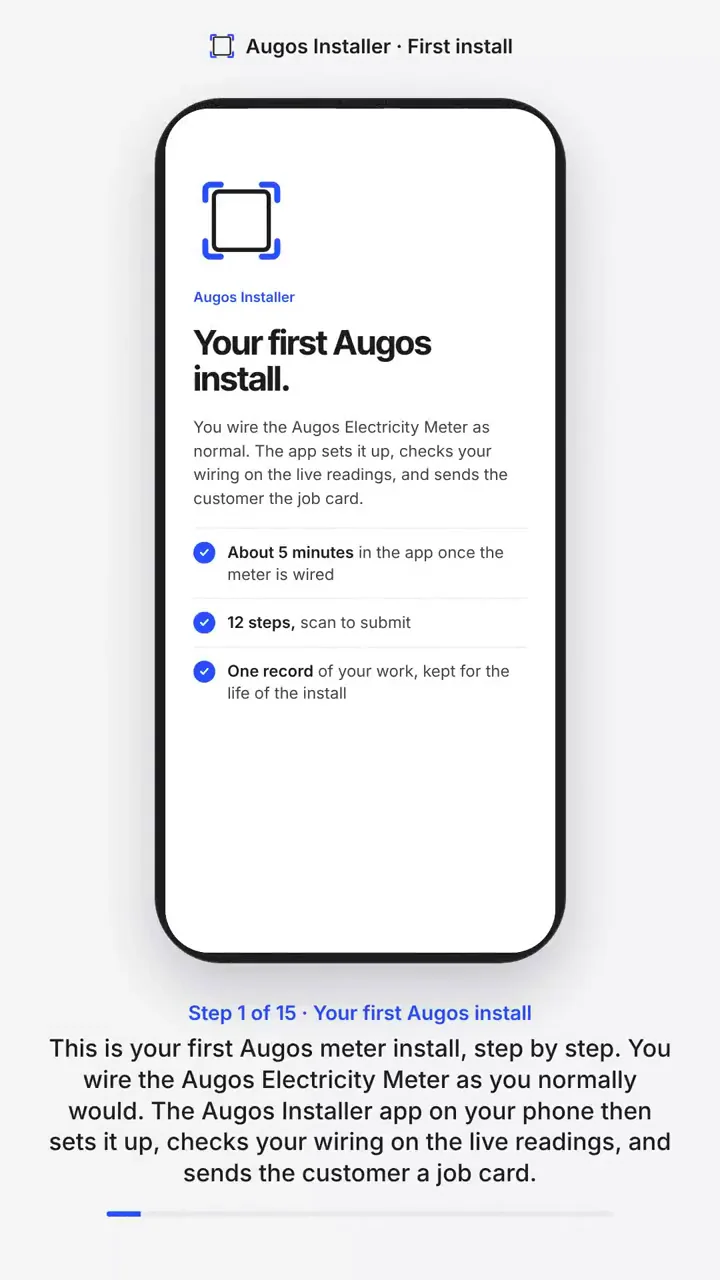
This is your first Augos meter install, step by step. You wire the Augos Electricity Meter as you normally would. The Augos Installer app on your phone then sets it up, checks your wiring on the live readings, and sends the customer a job card.
Before site
Before you go to site, put the app on your phone. Open installer-app.augos.io in Safari on an iPhone, or Chrome on Android, and add it to your home screen. Note the ratio on the CT labels, and follow the site's own isolation and permit rules.
Start and scan
Open the app from its home-screen icon and tap Start new installation. If you were interrupted on an earlier job, you can resume it exactly where you left off. Choose Standalone installation. Read the safety and liability acknowledgement and tick it. You are confirming you are qualified and authorised to work near live boards. The job clock starts here. Point the camera at the QR code on the meter. The app reads the serial and knows it is an Augos Electricity Meter. Wrong lens? Tap Switch camera. Damaged label? Type the serial in by hand.
Name the point and connect
Name the point the way the customer will read it on every report, for example, Main building, DB board A. Pick the street address from the list. GPS is taken by itself. If the accuracy shows red, step outside and recapture. Choose the metering connection. Most jobs are LV star: three phases, neutral and three CTs. The wiring guide shows the meter from the front with every terminal numbered. CT arrows point towards the load, S1 on plus, S2 on minus.
Set the CT ratio
Read the ratio off the CT itself, for example 100 over 5, and tap Configure. The setting goes to the meter over the mobile network, so give it up to about a minute and a half. On a medium-voltage job, you set the VT ratio here too.
The live checks
Now the app checks your wiring on the live readings. If two phases are crossed, you will see Phase rotation detected. Do not complete. Isolate, then swap the two CTs it names, or the two voltage leads, never both. Restore supply and tap Refresh. When it is right, every check is green: voltage between 210 and 250 volts, current on each loaded phase, positive power, phase rotation, power factor and frequency. If the signal is under 10, move the antenna and refresh.
Photos and submit
Take the six photos: the CT ratio, the voltage leads, the bottom and top terminals, the antenna, and the whole DB board. Keep them sharp, square and readable. They are saved as you go. Check the summary: the device, point name, address, GPS and all six photos. Tap Submit. If the signal drops, just tap Submit again. It never creates a duplicate.
The job card
That is it. The meter is live, and the customer already has the job card by email. Before you leave, confirm the CT ratio is set and the readings look right. The job card is the record of your work: your photos, the readings and checks, the time and the GPS. Augos keeps it for the life of the installation. Stuck on site? In office hours, call the Augos energy desk. If the wiring is unclear or unsafe, stop and escalate. Thanks for installing Augos.